Showing posts with label Report Definition. Show all posts

Wednesday, 8 May 2019

Cascading Auto Complete in Pega

Cascading Auto Complete in Pega

Functionality to implement: Have to display list of Country, then based on country selected have to show list of state, based on state selected have to display list of city.

Created a Local Data Table(TGB-HRAPPS-Data-LocationInformation) with sample data.


Created a section in Work class with 3 auto complete (Country, State, City)


For Country Property provided source as Report Definition and mapped Report Definition(GetCountry)


Provided Data source Property as .Country(TGB-HRApps-Data-LocationInformation) .List of country which is retrieved through report definition will display dynamically.


Below image displays GetCountry Report Definition. Checked Remove duplicate Check box so it will remove duplicate country.

Similarly state property also selected source as report definition. For GetState we have to pass selected country as parameter so that we can filter state which is in selected country.


For Data Source Property we have to give state which is retrieved in report definition.


Below image shows GetState report definition , Here we are getting List of state in the selected Country.


For city provided source as report definition(GetCity)


Provided City as Data source property.


Below image shows report definition to get city.


For all three property we have to give on change event as post value. So that selected value will update in Clipboard.


Result:

On clicking Down Arrow auto complete displays list of country.


Display list of state in country America.


In City auto complete it display list of city which is in state American State one.


Tuesday, 3 July 2018

How to join Multiple Class Properties in One Report in Pega

How to join Multiple Class Properties in One Report in Pega


Hi Friends , in this post I am going to give a demo on how to perform Join in Pega Report

First of all I created Two class , the structure of class in below image.
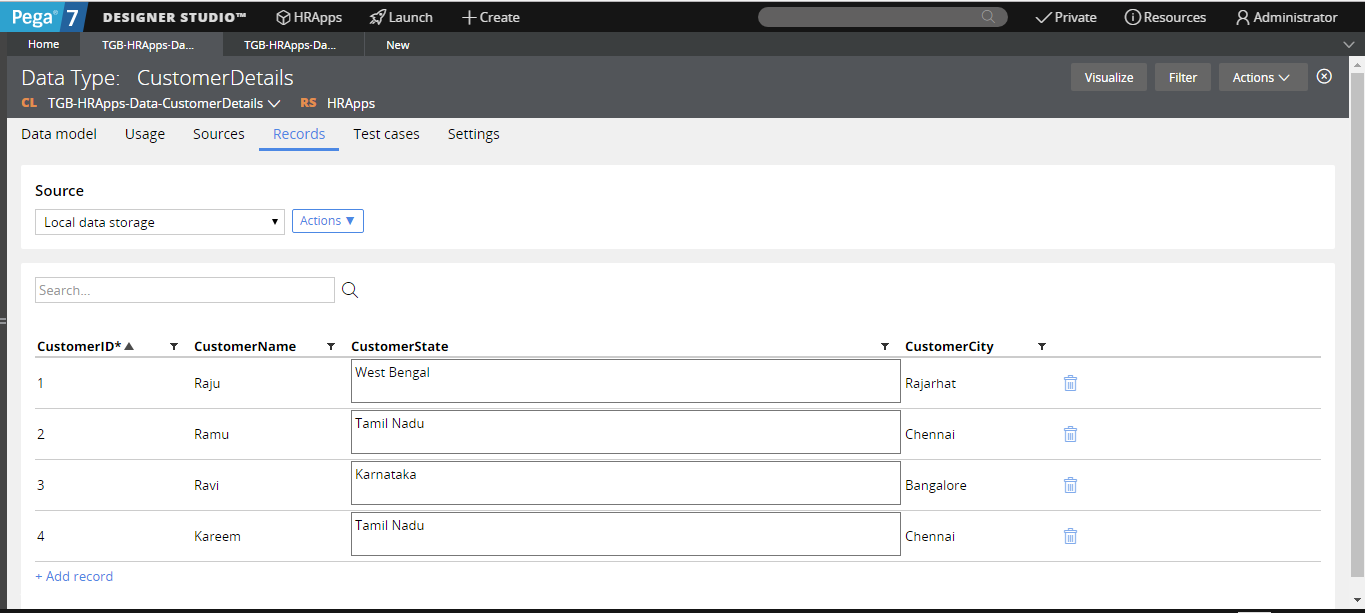
Here CustomerID is primary class of CustomerDetails Class and it is a Foreign Key of CustomerPolicyDetails Class so , by CustomerID we can access all the property in CustomerPolicyDetails Class. Below image shows the data I entered in both classes .


Now i created the report in class CustomerDetails.

Now I am adding the properties to access the table contents.

Here U can see I added CPD in front of PolicyDetails dont confuse with that, in next image u can see why we have to add this.

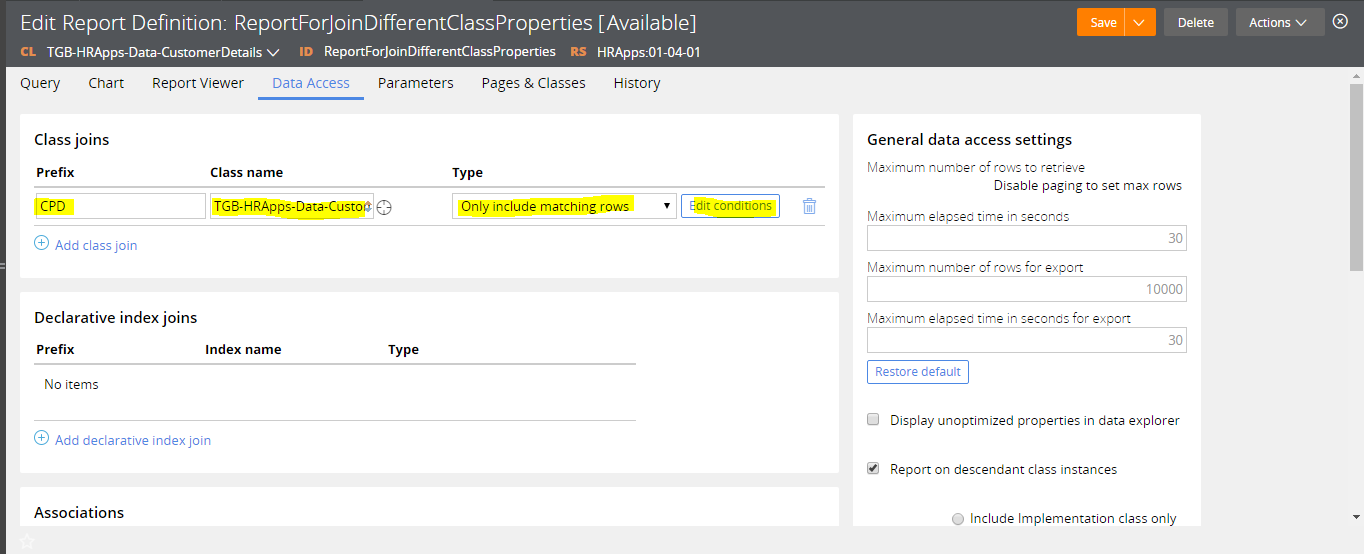
For Joining another one class in report, we have to give Prefix(Any value for accessing the property example: CPD.CustomerName, CPD.CustomerID, CPD.CustomerCity like that for referencing only we used this no other uses.) then we have to give class name (which class property we are going to use.) no need to change the Type , then click Edit Condition, it will open a box like below image.

Here u can add the filter, how to filter the data.In my example, I have to select all the policy id in CustomerPolicyDetails whose customer id is CustomerID in CustomerDetails Class.

U can see the results, by running the report.


If u not understood means U can ask me any Qns, Thanks For reading 😊