Thursday, 30 April 2020

Pega PowerPoint Generator

Pega PowerPoint Generator


Hi Friends, Pega provided Power Point Generator for generating PPT from our case  details.

In this Post we will see how to do that.

I did this with the help of  Ravi Kumar Pisupathi. He guided me in importing Jar into Pega.


you can download Jar file for Pega Powerpoint generator from the below URL.

https://community.pega.com/marketplace/components/pega-powerpoint-generator

After downloaded the file extract the jar file.

So next step is  we have to import the jar file inside archives folder into Pega.


In the below screenshot you can able to see I am importing the jar inside archives folder.

Next screen in wizard will be like below screen.

Dont make any changes simply click next button.


Complete the import process. As I am already imported the jar file into my system record moved displayed as 1. In Initial import more than 30 rules will be moved into our system.

I forgeted to tell one thing. We have ReadMe file under the documents folder.


In Read Me file we can see how to configure PPT Flowaction everything.


As mentioned in the ReadMe file we have to restart the application server once import completed to view the changes.

After reboot we can able to view PegaPowerPointGenerator ruleset in our ruleset instance.


We have to add this ruleset in our application ruleset stack.

Save the application rule.

Now our next work is to create a ppt template file and we have to import that into pega.

We have demo ppt file inside the examples folder.


Lets map this property pxApplication and pxApplicationVersion of pyWorkPage in our Sample ppt template.

In the below image you can able to see that the properties are mapped.

Save this file

Now we have to import this file into our pega using Binary file rule.


Create binanry rule.

Provide any name in label, I provided directory name as ppt.

Created sample template is in extension pptx so provided here extension as pptx.


Uploaded the template file.


Lets test our work.

created a sample flow in the connector

In the assignment connector added flow action(GeneratePresentation).


Lets run the flow.

Select the template from the dropdown.


After provided all the details in the UI.


After click Generate presentation we can able to see the attachment attached to the case.


In the downloaded ppt  file we can able to view the value which present in clipboard.


Now lets see how to display table in template.(Source for the table is a page list data)


Below is the list of courses records .
Added a utility in Flow to retrieve the courses record from table.

Activity steps , In step 1 we are retrieving all the courses records and in step 2 transferring data from courses.pxResults to .Courses Property List.

Step 2 : Property Set
Step 1: Obj-Browse

Pages and Class tab:


.Courses is a property created in Work class which is pagelist.
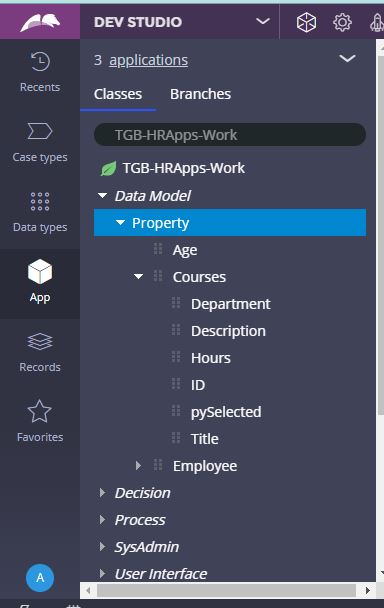

.Courses Property rule.


Now its time to map the pagelist table syntax in same ppt template.

Added syntax for showing pagelist in PPT.


Upload again this template ppt into the binary file as we made changes in template.

Lets run the flow again and generate ppt.


Below is the result.


hope you guys understood about this post.

Thanks you for reading. Ask in comment if you have any questions.

Sunday, 19 April 2020

Page List expression Part 2

Hi Friends, In this post we will see below Page List expression.


PDN help:

https://community.pega.com/sites/default/files/help_v718/definitions/p/pagelist.htm


IsInPageListWhen(whenName, lookIn) -  this expression will return true when any one of the pages in page list  evaluates to true. 


Below is the list of instance in Courses table.


Now when we have to use this expression?

If our requirement is to find  any records having department as engineering  then we can use this expression.

How we can do that.

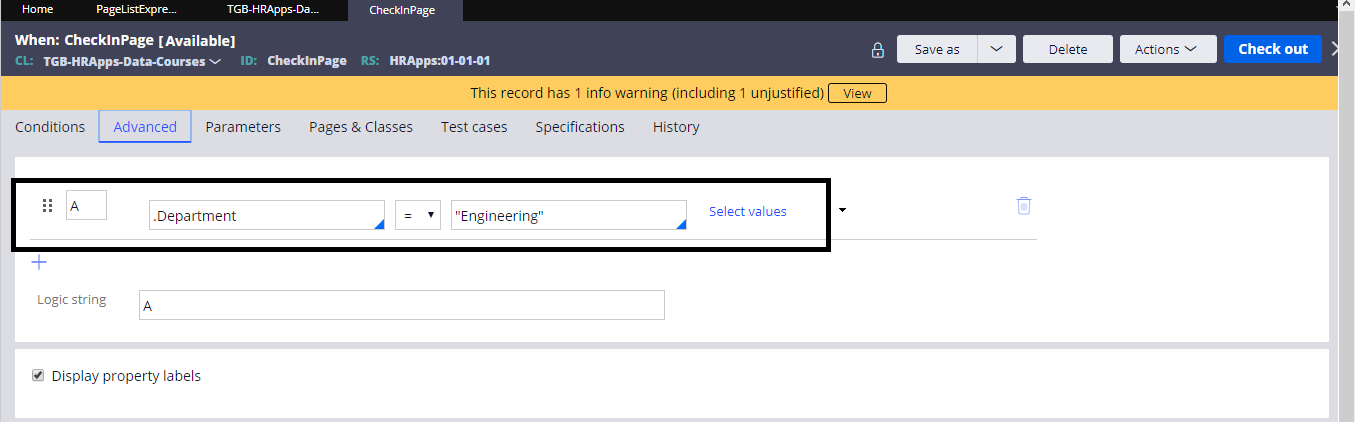
In the when rule we can check .Department = "Engineering"


Activity:


Obj-Browse: to browse list of records from Course table.


In the property set added the expression to check any pages have the match.


Now the above expression will become true when any pages data evaluates to true against the when rule CheckInPage.

When rule: CheckInPage


Now run the activity and check the result in Tracer.


In tracer we can able to see total 10 records retrieved from table. then the when rule become true.


So lets check the parameter(RetValue) in Parameter Page.


Value is true in Tracer.

So this expression completed.

---- **** -----


IsInPageList(lookFor, lookAt, lookIn) - This expression will provide return value true/false.

LookIn -  pagelist name in which we have to check.
LookAt- Property in Page.
LookFor- which value we have to check in the property.


In Page List CourseList.pxResults we are checking any pages having department = engineering.
In tracer we can able to see the parameter value as true.


Other expression we will see in next post. If you have any doubt ask in comment.😊

Thursday, 26 March 2020

Count In Page List Pega expression


Count In Page List Pega expression

Hi Friends, today we will practice the Page List expression provided in the below Pega help URL.

https://community.pega.com/sites/default/files/help_v718/definitions/p/pagelist.htm

Wrote a sample activity in work class to browse the list of pages from Courses data class.


Courses Data table


countInPageList(LookFor, LookAt, LookIn)


This expression will provide the Match count . 

LookIn- PageList name in which we want to search.
LookAt- which property we have to search for value.
LookFor - Value what we have to search in the Property.


Now If I want to get the Number of records having Hours = 2 , then I will use this expression .


From the table we can see for 4 records hours is 2.

In Property-Set added expression to get the count of pages which having hours 2.

Value will return in Count Parameter.


Lets run the activity and check the result in Parameter page.

Activity ran and traced 


In Event Line 7, we will check the parameter page.

We can see the result as 4 in Count Parameter.

countInPageListWhen(WhenName, LookIn)


This expression little bit same as above expression. 

WhenName - We can use the when condition to evaluate the data in the Current Page of PageList.
                       If the when condition becomes true then count will increase by 1.

LookIn- PageList name in which we want to search.


In acitivity added the expression, If when condition SalesDepartment becomes true then count will increase by 1.


When Condition

This when condition becomes true when current page in page list have department contains Sales.

Lets run the activity and check it.

In the tracer we can see when condition became true for record 9 and 10. So Count should be 2.


Result:

Count is 2.


other expression will see in next post. Ask in comment if you have any doubt😊