Showing posts with label activity steps in pega. Show all posts

Sunday, 19 April 2020

Page List expression Part 2

Hi Friends, In this post we will see below Page List expression.


PDN help:

https://community.pega.com/sites/default/files/help_v718/definitions/p/pagelist.htm


IsInPageListWhen(whenName, lookIn) -  this expression will return true when any one of the pages in page list  evaluates to true. 


Below is the list of instance in Courses table.


Now when we have to use this expression?

If our requirement is to find  any records having department as engineering  then we can use this expression.

How we can do that.

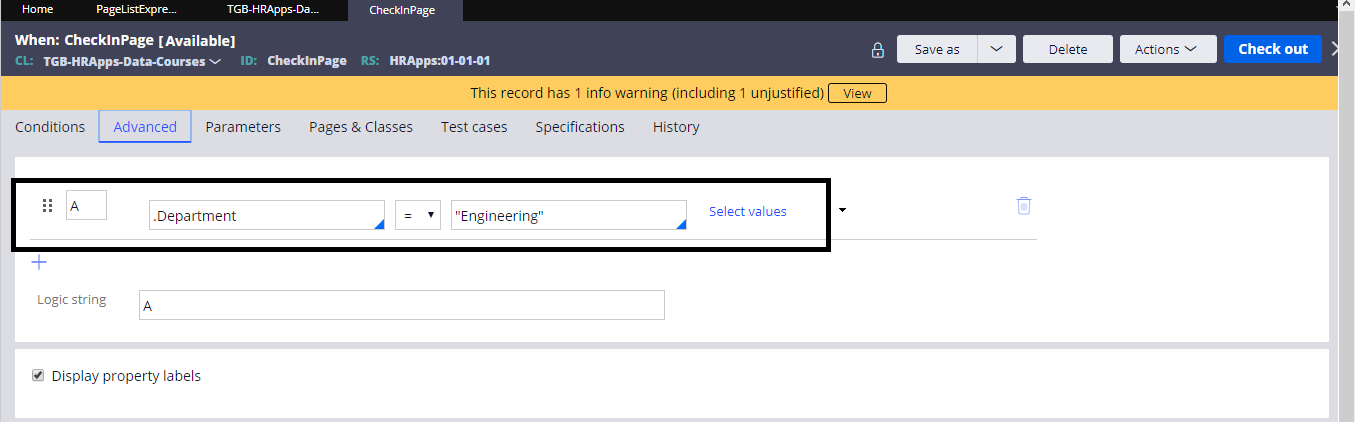
In the when rule we can check .Department = "Engineering"


Activity:


Obj-Browse: to browse list of records from Course table.


In the property set added the expression to check any pages have the match.


Now the above expression will become true when any pages data evaluates to true against the when rule CheckInPage.

When rule: CheckInPage


Now run the activity and check the result in Tracer.


In tracer we can able to see total 10 records retrieved from table. then the when rule become true.


So lets check the parameter(RetValue) in Parameter Page.


Value is true in Tracer.

So this expression completed.

---- **** -----


IsInPageList(lookFor, lookAt, lookIn) - This expression will provide return value true/false.

LookIn -  pagelist name in which we have to check.
LookAt- Property in Page.
LookFor- which value we have to check in the property.


In Page List CourseList.pxResults we are checking any pages having department = engineering.
In tracer we can able to see the parameter value as true.


Other expression we will see in next post. If you have any doubt ask in comment.😊

Saturday, 14 March 2020

About AddHistory API


About AddHistoryAPI

In this Post, we will see what is AddHistory API activity, Pega provides many API(Built In) activity.

l  We can reuse these activity in many places based on requirement.

APIs is in the path : Configure -> Case Management -> Processed -> APIs


Here we have many built in APIs.

If we see the history of that activity we can understand that this activity will write history to Work Object(Case ID).


A single method used in this activity History-Add , we have to provide Memo(Description) as input parameter.


Demo:

GetCustomerData flow


In Post processing of flow action called AddHistory activity, for that provided a memo(Customer Data has been recieved) as Input


A case has been completed, We can able to see the history in Audit tab.


In History class of customer class we can able to see the history we wrote.


If you click any row a tab wil open , there we can see the xml version by using View XML.


Here we can see more details


Please ask if you have any doubts in comment😊

Thursday, 8 August 2019

Index in Pega (Append, Current, Insert, Last, Prepend)


Index in Pega (Append, Current, Insert, Last, Prepend)


Hi Friends, Today we will see how to use Index in Pega.

To Refer PDN Help click here

There are 5 indexes available.

  1. Append
  2. Current
  3. Insert
  4. Last 
  5. Prepend

Append: (Format: PageList.pxResults(<Append>).PropertyName)

     To add an element to Page List or Value List at the end we will use this index. For Example, We have a page list with 5 Pages if we want to add a new page then we will use this index to append a new page .

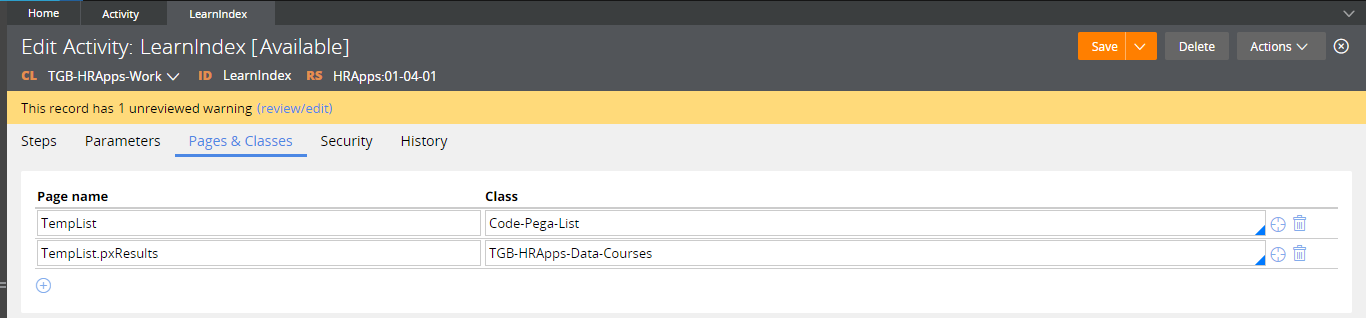
In the activity created a new page List named TempList .


Each Page of TempList page list refers to Class "TGB-HRApps-Data-Courses".


Save and executed the activity A Page List is created in Clipboard without any pages in it.


In 2nd Step Property Set added logic to append a new page to page list. In that page ID Property we are setting to value 1.


After Executed the activity a new page is appended in the page list so 1st Page created with values.


Modified Step to Append 3 Pages one after one.

After Executed activity , In Clipboard you can see 3 pages created one after one.


Hope understand about Append Index. Lets see Last Index.

Last: (Format: PageList.pxResults(<LAST>).PropertyName)

If We want to add any property values in Last Page, then we  have to use this index.


After Execute activity you can see Description is added in Last Page(3).


Hope understand about Last Index. Lets see Insert Index.

Insert: (Format: PageList.pxResults(<INSERT>3).PropertyName)

We are use this index to add a page at a particular Index. For example if we want to add a page in 4th Place then we have to give like (<Insert>4)

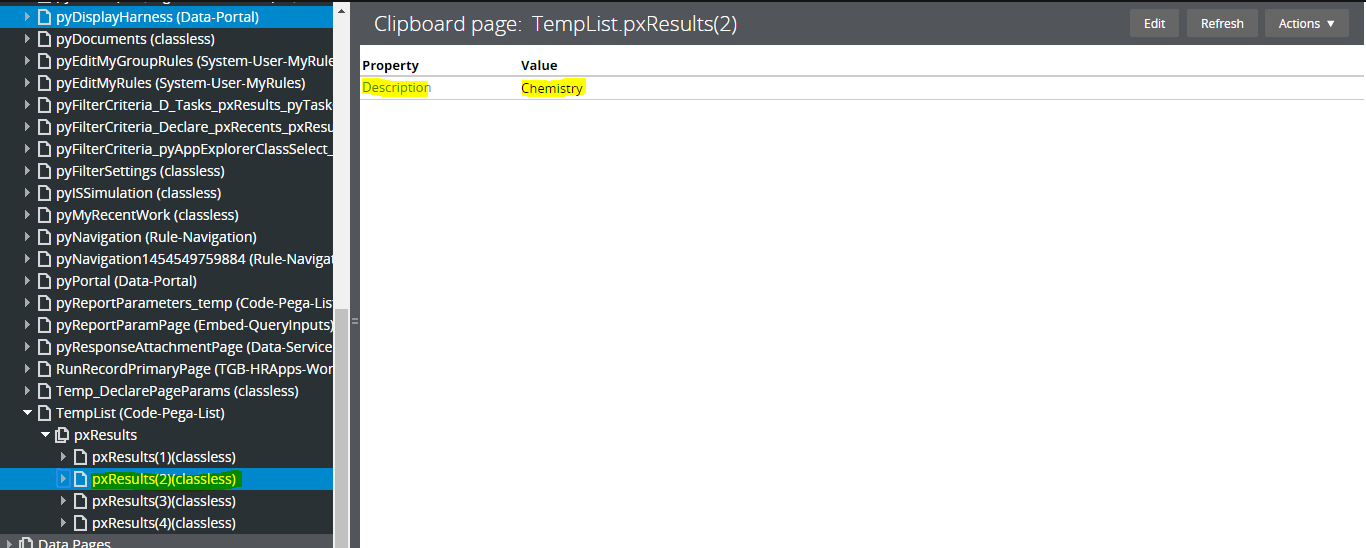
In the below screenshot we are adding a page in 2nd index , In that page we are setting Description as Chemistry.

After Execute the activity, We can see 2nd page is created with Description Chemistry.


Hope understand about Insert Index. Lets see Prepend Index.


Prepend: (Format: PageList.pxResults(<Prepend>).PropertyName)

Use this index to Add a page in First Index. For example, if you want to add a page in first index of the page list then we have to use this index.

Add a step to Add a page in first index with description Physics


A New Page prepended at 1st index with Description Physics


Hope understand about Prepend Index. Lets see Current Index.

Current: (Format: PageList.pxResults(<Current>).PropertyName)


Current functionality is same as i in for Loop ( for(i=0;i<5;i++) , We can refer Current Loop Page property using this index.

If you see below image we are Copying current loop ID value to Param.ID.
 
So When 1st Loop execute the expression will be TempList.pxResults(1).ID
     When 2nd Loop execute the expression will be TempList.pxResults(2).ID
     When 3rd Loop execute the expression will be TempList.pxResults(3).ID
     etc,


Hope understand about all index. Comment me in case of any doubts friends😊

Thursday, 25 July 2019

How to export from Page List to excel in pega

How to export from Page List to excel in pega


Hi Friends, Today we will see how to export data from Page List to Excel sheet in pega.

Below is the List of steps we will follow to do this.
  1. Form Data in Page List
  2. Create Binary File Rule and Upload excel file contains page format of property
  3. Call Pega built in utility to export data

We have LeaveBalanceDays data Class which have list of Records. Now we will try to export these data to excel.


Below is the list of steps we will use in activity.


Pages and Class Tab:


Form Data in Page List:

 Before exporting data to excel we are forming the data in page list. In the Obj-Browse we are retrieving list of records and keeping in the Page List named EmpList.


Create Binary File Rule and Upload excel file contains page format of property:

We have to create a binary file rule which contains sample structure of data that we are going to export. Below screenshot is the excel file that we are going to upload in binary file.


Each EmployeeID in page will print in EmployeeID Column , Each FirstName in page will print in FirstName Column .

Save this file in your local machine in format .xlsx

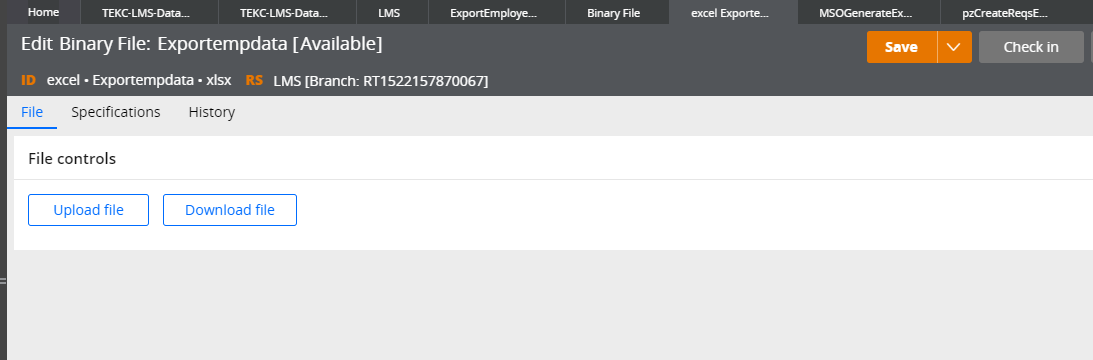
Create binary file with Directory name as excel  and  file type as xlsx 


After creation of binary file upload the excel file template that we stored in local machine.


Save the binary rule.

Lets come to activity steps. MSOGenerateExcelFile is the built in activity to export data to excel we have to provide some required parameters to that activity.


For MSOGenerateExcelFile activity we have to pass 3 parameters.

  1. Param.FSFileName - Provide excel file name that we uploaded.
  2. Param.TemplateRFB - Have to provide binary file template name.
  3. Param.DownloadFile - true if we want to download file.

Check Pass Current parameter in method parameters.

Lets test our steps by run the activity.


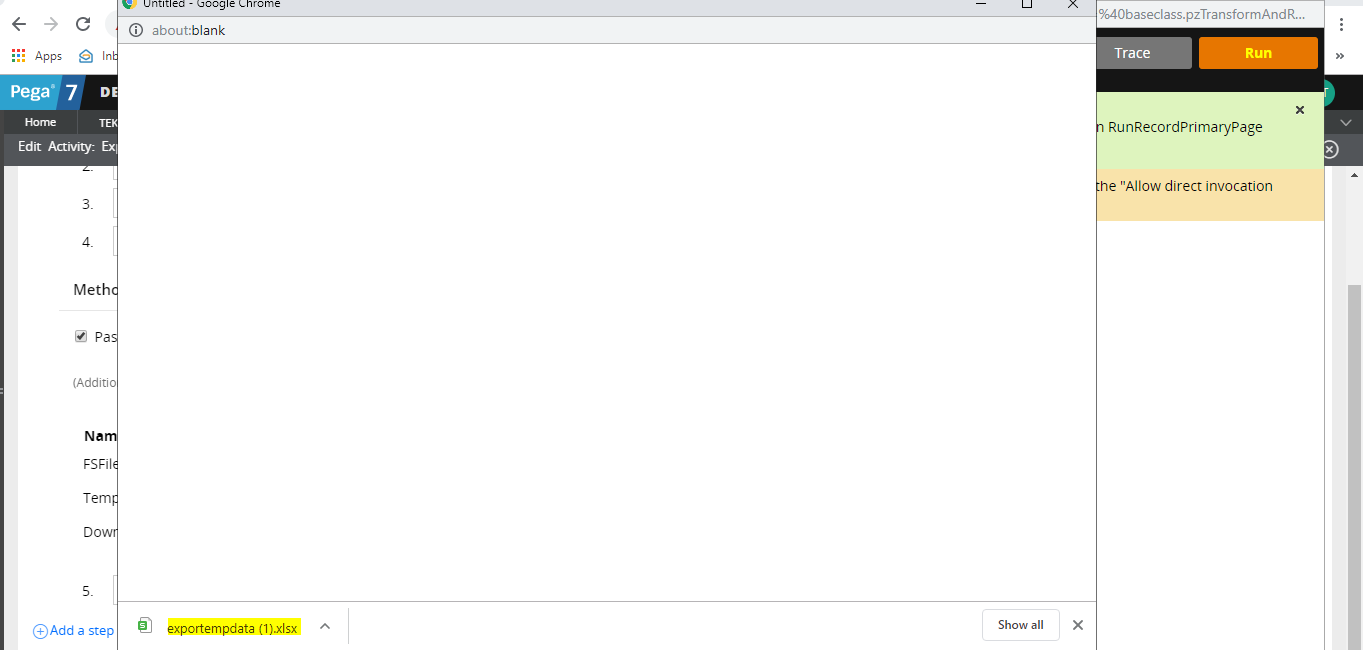
Excel file got downloaded open the file and check whether data exported or not.


Data in data table exported to excel file. Hope this concept understood . If any queries ask in comment friends😊

Note: In some pega version MSOGenerateExcelFile activity may through nullpointer exception. If so replace java step in MSOGenerateExcelFile with Below code and try:


String xlFileName = tools.getParamValue("FSFileName");
PRFile xlFile = new PRFile(xlFileName);
java.io.OutputStream xlOS = null;
java.io.InputStream tempIS = null;
byte[] tempBytes = null;
boolean projectSizingPresent = false;
String strWorkObjectRef = "";
ClipboardPage objRefPage = null;
java.util.ArrayList sizingList = new java.util.ArrayList();
try {
  
        tempBytes = new com.pega.pegarules.pub.util.Base64Util().decodeToByteArray(tools.findPage("TemplateFile").getString("pyFileSource"));
  
  
    tempIS = new java.io.ByteArrayInputStream(tempBytes);
    java.util.Map xlZipEntryMap = null;
  
        xlZipEntryMap = com.pegarules.generated.pega_appdefinition_excelintegration.DCOXLGenerateZipEntryMap(tempIS);
  
    xlOS = new PROutputStream(xlFile);
    com.pegarules.generated.pega_appdefinition_excelintegration.DCOzipEntryMapToStream(xlZipEntryMap, xlOS);
    if (tools.getParamAsBoolean(PropertyInfo.TYPE_TRUEFALSE, "DownloadFile")) {
        pega_rules_default.downloadFile(xlFile.toString(), tools, true);
    }
}
catch (Exception e) {
    oLog.error("Error in parsing Excel file " + xlFileName, e);
    //throw new RuntimeException(e);
    tools.getStepPage().addMessage(e.toString());
}
finally {
    if (xlOS != null) try { xlOS.close(); } catch (Exception e) { }
    if (tempIS != null) try { tempIS.close(); } catch (Exception e) { }
}


Sunday, 30 June 2019

Understanding a Activity How it works

Hi Peers,

Today  we walk you through in this post regarding simple activity to understand the rule behind scene :)


A simple activity can update a property for one operator ID instance by opening the instance, updating the clipboard page saving the updated clipboard page, and committing the result to the database

First the activity opens an operator ID record, based on the value of a parameter, and copies the data from the database to a clipboard page. Next, the activity updates the user locale update time and name of the user who updated the record. Finally, the activity saves the updated page back to the pega database, making the updates permanent.

Each step of the activity and its corresponding method are described below,

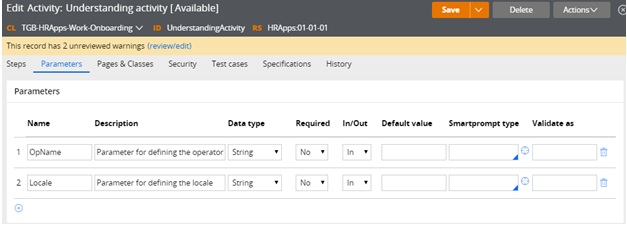
On the Parameters tab define the parameters that identify the operator Id to be updated and the new locale value


On the Pages & Classes tab enter the name of a page that holds the contents of the Opertor ID record that is returned by the Obj-Open method.


On the Steps tab, do the following.

   Add an Obj-Open method. This method opens a single record from the database and copies in to a clipboard page.

 Enter the values shown below to specify that the value of the .pyUserIdentifier property on the Operator record equals the value of the parameter that is defined on the Parameter tab.


Note : Methods that return data from an object (such as Obj-Browse and Obj-Open) .Put the returned data on the step page.

If your application updates and saves the instance select the lock check box to prevent other requestors from updating the instance while your requestor is using it.

Add a Property-Set method to update the .pyUseLocale  property and two other  properties. List the Step page again. This provides context for the properties that are selected so you do not need to provide the page name before  the period that precedes the property name.

Note: @CurrentDateTime() is a standard function rule that returns the current system date and time.


Note: For activities that are used in flow processing, do not include a Commit step. Built-in activities contain Commit methods at the appropriate places.


At this point, you can test the activity. After you run the activity, you can see the updated data on the Operator ID rule form. To help with testing, include a Show-Page method to display the Operator page contents before or after the Property-Set step.

Testing the example

To test the activity, do the following steps:
  1. Click Actions > Run.
  2. Notice the parameter names; these are the names that you defined on the parameters tab.
  3. Enter a value for each parameter.
  4. Click Run to start the activity.

Run parameters

When the processing reaches the Show-Page step, the page contents appear as an XML document in a browser window.

The page output appears as shown below. Notice the pyUserIdentifier and the updated pyUseLocale values.


Note:  Remove the Operator page from the clipboard by adding a Page-Remove method. This frees up memory that is no longer needed.  In the Step page field, enter the name of the page to be removed.

Cheers,

Hope you understand. If you have any queries ask in comment section.

Thanks peers :)