Showing posts with label Clipboard in pega.. Show all posts

Thursday, 8 August 2019

Index in Pega (Append, Current, Insert, Last, Prepend)


Index in Pega (Append, Current, Insert, Last, Prepend)


Hi Friends, Today we will see how to use Index in Pega.

To Refer PDN Help click here

There are 5 indexes available.

  1. Append
  2. Current
  3. Insert
  4. Last 
  5. Prepend

Append: (Format: PageList.pxResults(<Append>).PropertyName)

     To add an element to Page List or Value List at the end we will use this index. For Example, We have a page list with 5 Pages if we want to add a new page then we will use this index to append a new page .

In the activity created a new page List named TempList .


Each Page of TempList page list refers to Class "TGB-HRApps-Data-Courses".
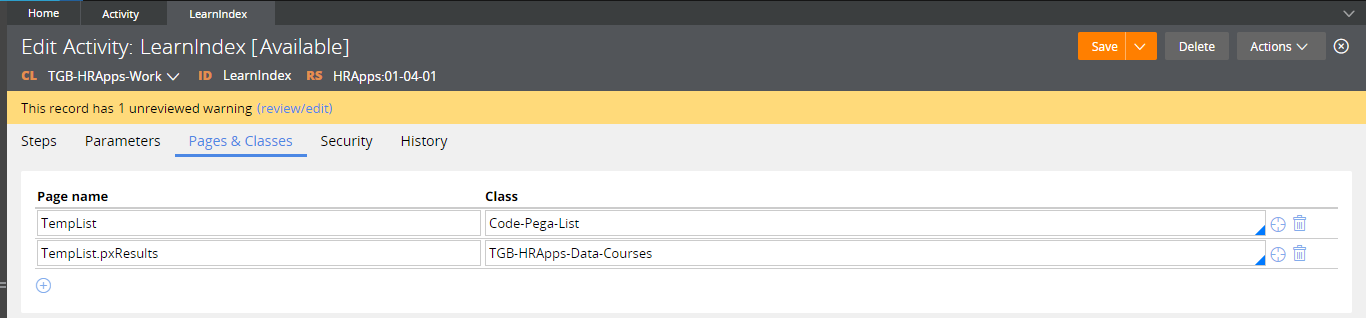

Save and executed the activity A Page List is created in Clipboard without any pages in it.


In 2nd Step Property Set added logic to append a new page to page list. In that page ID Property we are setting to value 1.


After Executed the activity a new page is appended in the page list so 1st Page created with values.


Modified Step to Append 3 Pages one after one.

After Executed activity , In Clipboard you can see 3 pages created one after one.


Hope understand about Append Index. Lets see Last Index.

Last: (Format: PageList.pxResults(<LAST>).PropertyName)

If We want to add any property values in Last Page, then we  have to use this index.


After Execute activity you can see Description is added in Last Page(3).


Hope understand about Last Index. Lets see Insert Index.

Insert: (Format: PageList.pxResults(<INSERT>3).PropertyName)

We are use this index to add a page at a particular Index. For example if we want to add a page in 4th Place then we have to give like (<Insert>4)

In the below screenshot we are adding a page in 2nd index , In that page we are setting Description as Chemistry.

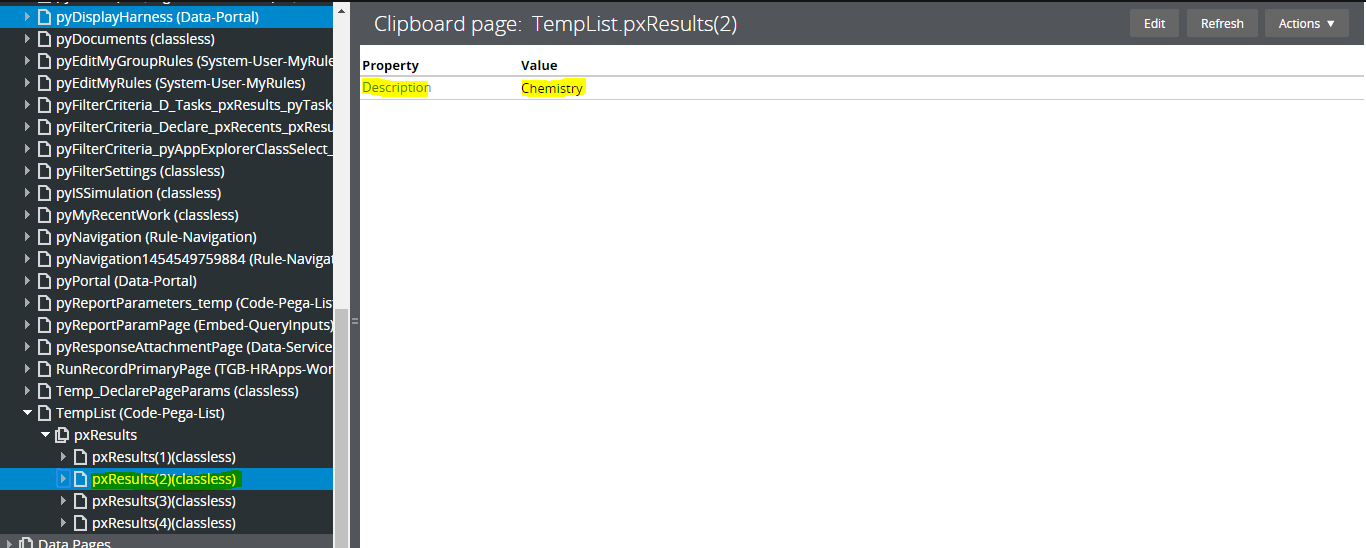
After Execute the activity, We can see 2nd page is created with Description Chemistry.


Hope understand about Insert Index. Lets see Prepend Index.


Prepend: (Format: PageList.pxResults(<Prepend>).PropertyName)

Use this index to Add a page in First Index. For example, if you want to add a page in first index of the page list then we have to use this index.

Add a step to Add a page in first index with description Physics


A New Page prepended at 1st index with Description Physics


Hope understand about Prepend Index. Lets see Current Index.

Current: (Format: PageList.pxResults(<Current>).PropertyName)


Current functionality is same as i in for Loop ( for(i=0;i<5;i++) , We can refer Current Loop Page property using this index.

If you see below image we are Copying current loop ID value to Param.ID.
 
So When 1st Loop execute the expression will be TempList.pxResults(1).ID
     When 2nd Loop execute the expression will be TempList.pxResults(2).ID
     When 3rd Loop execute the expression will be TempList.pxResults(3).ID
     etc,


Hope understand about all index. Comment me in case of any doubts friends😊

Sunday, 30 June 2019

Understanding a Activity How it works

Hi Peers,

Today  we walk you through in this post regarding simple activity to understand the rule behind scene :)


A simple activity can update a property for one operator ID instance by opening the instance, updating the clipboard page saving the updated clipboard page, and committing the result to the database

First the activity opens an operator ID record, based on the value of a parameter, and copies the data from the database to a clipboard page. Next, the activity updates the user locale update time and name of the user who updated the record. Finally, the activity saves the updated page back to the pega database, making the updates permanent.

Each step of the activity and its corresponding method are described below,

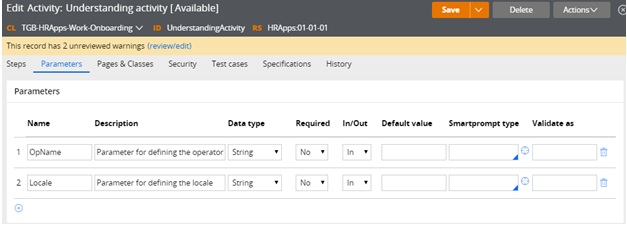
On the Parameters tab define the parameters that identify the operator Id to be updated and the new locale value


On the Pages & Classes tab enter the name of a page that holds the contents of the Opertor ID record that is returned by the Obj-Open method.


On the Steps tab, do the following.

   Add an Obj-Open method. This method opens a single record from the database and copies in to a clipboard page.

 Enter the values shown below to specify that the value of the .pyUserIdentifier property on the Operator record equals the value of the parameter that is defined on the Parameter tab.


Note : Methods that return data from an object (such as Obj-Browse and Obj-Open) .Put the returned data on the step page.

If your application updates and saves the instance select the lock check box to prevent other requestors from updating the instance while your requestor is using it.

Add a Property-Set method to update the .pyUseLocale  property and two other  properties. List the Step page again. This provides context for the properties that are selected so you do not need to provide the page name before  the period that precedes the property name.

Note: @CurrentDateTime() is a standard function rule that returns the current system date and time.


Note: For activities that are used in flow processing, do not include a Commit step. Built-in activities contain Commit methods at the appropriate places.


At this point, you can test the activity. After you run the activity, you can see the updated data on the Operator ID rule form. To help with testing, include a Show-Page method to display the Operator page contents before or after the Property-Set step.

Testing the example

To test the activity, do the following steps:
  1. Click Actions > Run.
  2. Notice the parameter names; these are the names that you defined on the parameters tab.
  3. Enter a value for each parameter.
  4. Click Run to start the activity.

Run parameters

When the processing reaches the Show-Page step, the page contents appear as an XML document in a browser window.

The page output appears as shown below. Notice the pyUserIdentifier and the updated pyUseLocale values.


Note:  Remove the Operator page from the clipboard by adding a Page-Remove method. This frees up memory that is no longer needed.  In the Step page field, enter the name of the page to be removed.

Cheers,

Hope you understand. If you have any queries ask in comment section.

Thanks peers :)

Monday, 15 October 2018

Obj - Sort in Pega

Obj - Sort in Pega


Hi Friends Similar like Obj-Filter We can easily guess the functionality of this Method. It will sort the records in Page List Property in clipboard.

Lets See How it Works,


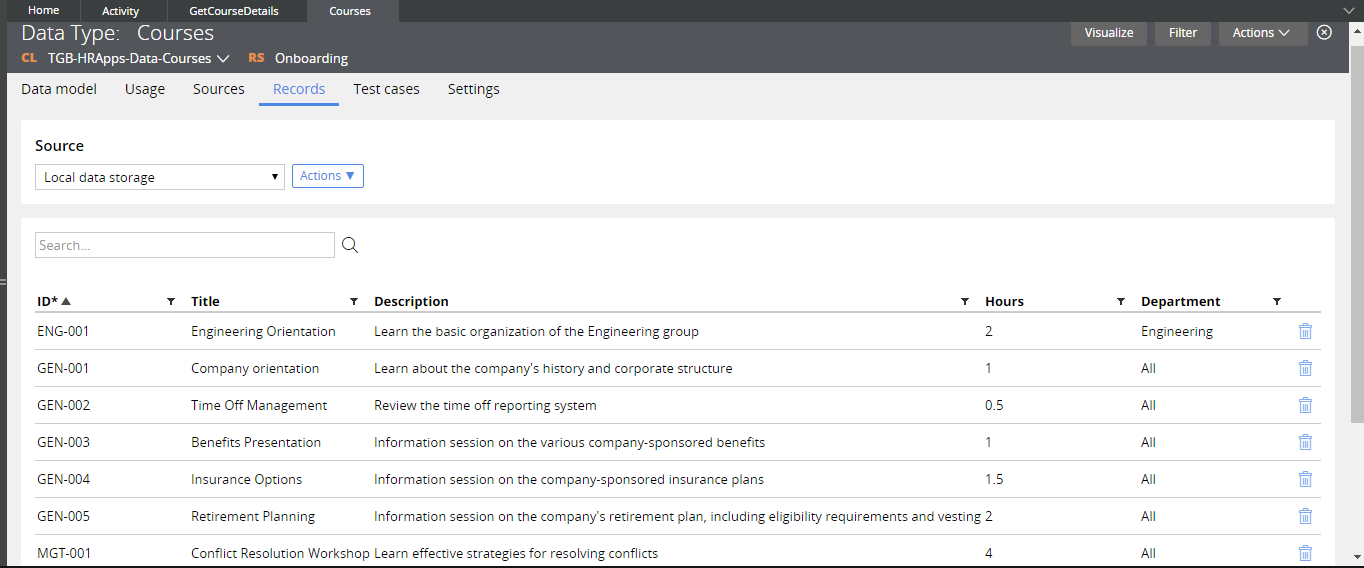
This is My Local Data Table Containing the List of Course Records.


And this is My activity Containing 3 steps.
  1. Page-New -To store data that I process in this activity
  2. Obj-Browse- To retrieve data from Local Data Table
  3. Obj-Sort - To sort data in the page list.

Here is the Pages and Class Tab.

In Obj-Browse I Retrieved all the records from Table.


Now In Clipboard it retrieved all the values 

Before Applying the Obj-Sort First Record is.


Obj-Sort Method.

PageListProperty - We have to provide the PageList in which the records are available.
Class - We have to provide the Class Name to which Class is refering.
Sort Property- Here we have to provide the Property Name by which we are sorting. For example, if I want to sort by Name I have to give here (.Name) .Now I try to Sort Based on Book Title , So  I provide here SortProperty as .Title. 

Then we unchecked that Descending Property this method will sort records in Ascending Order. If we checked this checkbox it will sort the records in descending order.


Lets Check Once in clipboard and see the result of our step.

First Record:

Last Record:


Now u can see that the records are sorted based on Title. 

Thank U Friends for Reading. If any doubt, ask in comment. See U :)

Wednesday, 29 August 2018

Primary Page in pega

Use of Primary Page in pega


In most of the case we will use Primary page in pega activity. What is the use of Primary page and why we have to use primary page???

Primary page is a page in pega, which refer to the current rule class name.

Now our requirement is to get the employee details for the given employee id. 

How to acheive this?? First we have to create one flow in that flow , in first section we have to get the employee id . In action tab of EmployeeID property we have to post the value to clipboard and then call one activity in that activity we have to use obj-Browse method to get the employee details. 

Lets see how to achieve this.

Our flow look likes

Our section look likes


In the First Dynamic layout we have one Employee ID property to get the employee id . On change we have to post the value to clipboard and then call one activity.


U can ask , Y we have to use Post Value , the answer is to post the property value to clipboard.  Now in our scenario. Once I changed the EmployeeId property with some value that value will be send to clipboard using this Post Value.


Then on change of value in EmployeeID property we are calling one activity "RetrieveEmpDetails"

there we retrieve employee details.

Now In first step , I created Page-New step to create one page in clipboard with name TempEmpDetails.

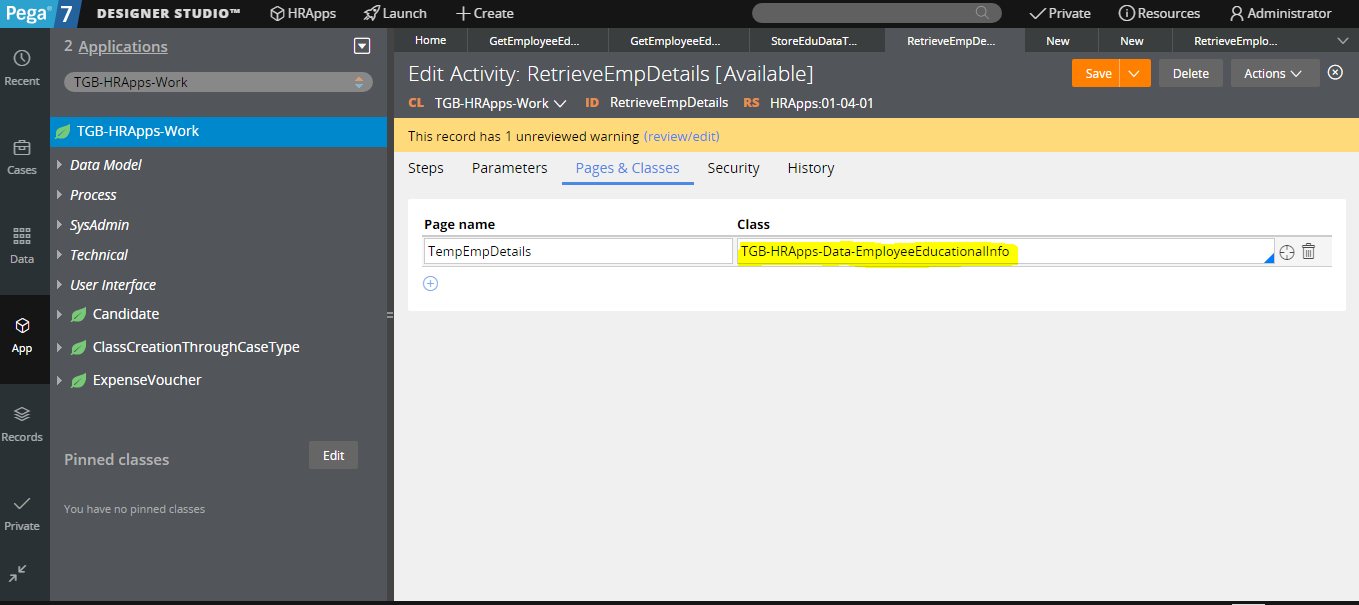
TempEmpDetails refer to class where my local data table is there.


In second step, I added Obj-Browse, to retrieve values,

Now I used page Primary. in this time primary refer to "TGB-HRApps-Work", as I told already Primary == class of the rule.(activity is in class TGB-HRApps-Work)

So in run time EmpID is refered from pyWorkPage , this is because pyWorkPage is also refer the current rule class .

Now we run once our flow and check whether our activity works fine or not.


Now lets run the flow.

Now I gave 2 in employee id field. so now see our clipboard whether TempEmpDetails have value or not.


So its working.  I think U understand how to use Primary Keyword in pega activity. Primary refer to class of the rule.

If any Doubt ask in comment 😊

Monday, 6 August 2018

Pega Programming to calculate Sum the odd and even numbers, respectively, from 1 to a given upperbound.

Sum the odd and even numbers, respectively, from 1 to a given upperbound


Hi Friends, I try to implement one simple program "Sum the odd and even numbers, respectively, from 1 to a given upperbound. "


Lets see how to implement this in Pega.

I created one flow 

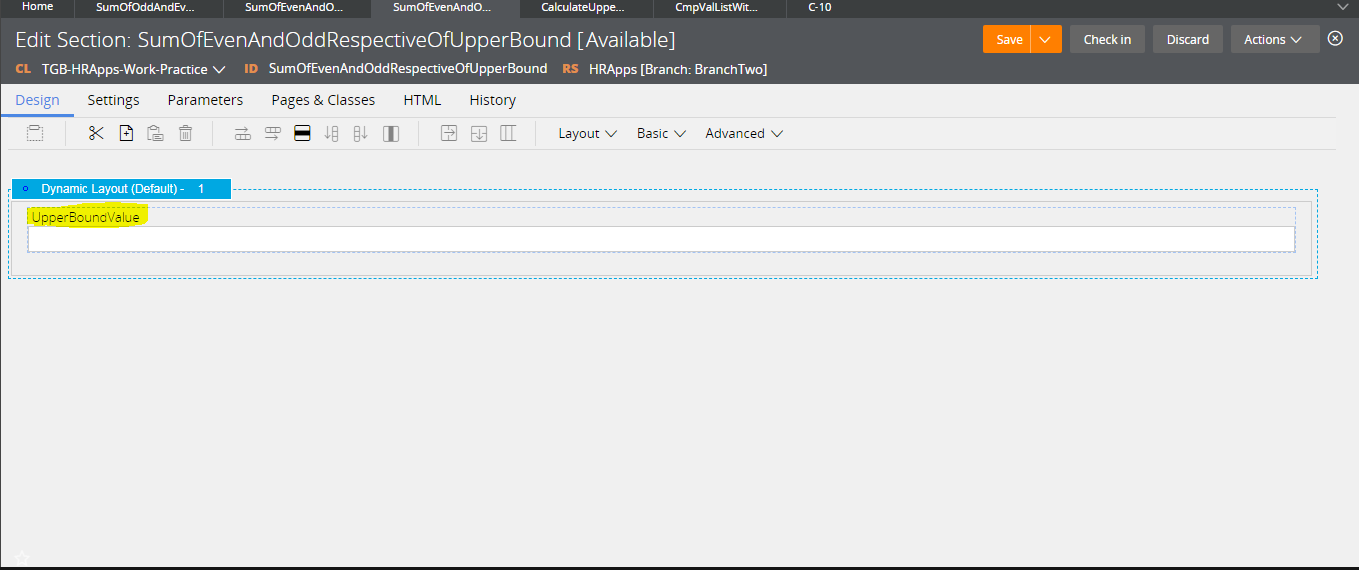
In the Section I get the UpperBound Value using one text box. 

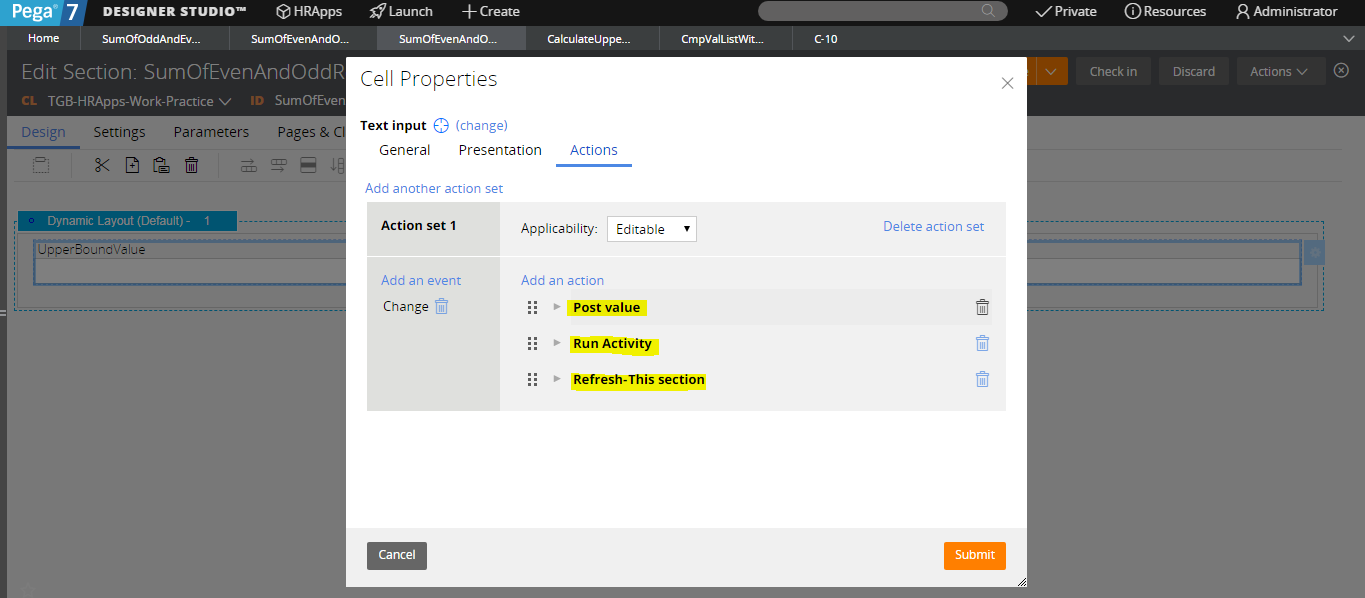
In the action tab of property control I added three action on Value change in text box.


Post Value - to post this value to clipboard.
Run Activity- to run the activity to acheive our functionalities
Refresh-This Section -  to display the output in below 2 text boxes(Not yet created , I will create later). On refresh only we can access the clipboard page property. So we refresh this section.

In Run Activity I called one activity named CalculateUpperBoundValue.


Lets see how to acheive this logic using activity.


This is the activity I created.


In first step I used Page-New , this step is to hold all the values while we process the data. I gave page name as PageOne , after we give here the Step Page name we should give page and class name in Pages and class tab.


Next Page-Copy, In this step I copied all the values from pyWorkPage to PageOne

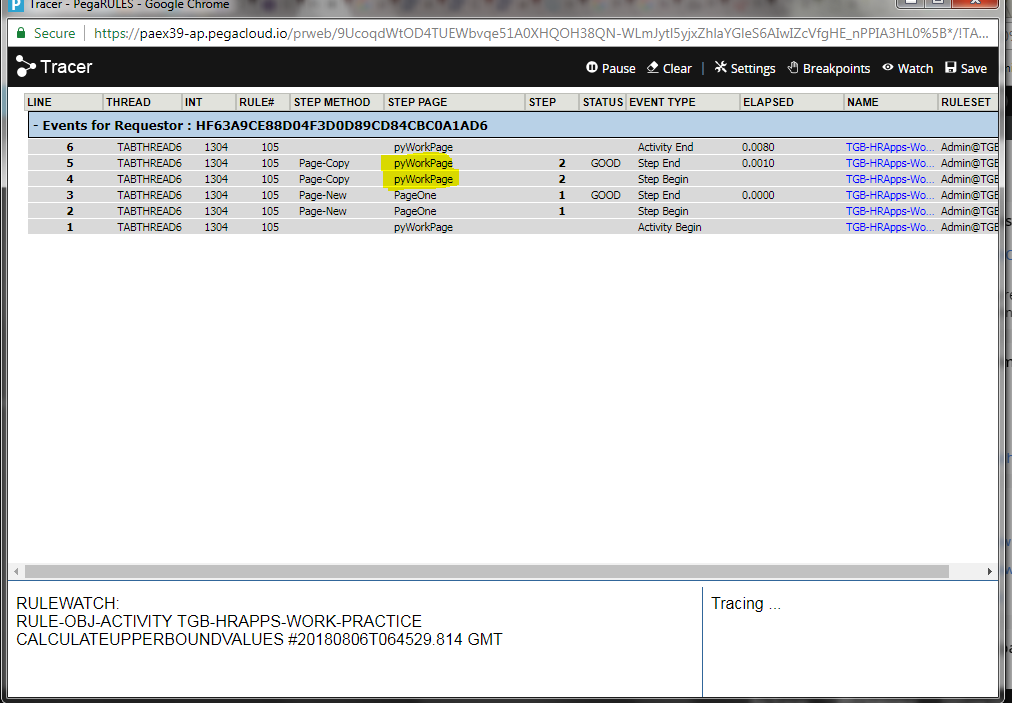
U can ask , I am not gave pyWorkPage in any place, The answer is if  we are not give any page name in CopyFrom then in compile time it takes the page of previous step.

We can test this with tracer. I comment all the steps below 2 and see what happend.
You can see In second step the step page is pyWorkPage so automatically in PageFrom it takes pyWorkPage.

We are copying all the value in pyWorkPage to PageOne.

In Step 3 , I added Property-Set to declare properties with default value.

Here U can see I used Local Variable, if we used Local Variable we can use this value in all this places in this activity not outside this activity.

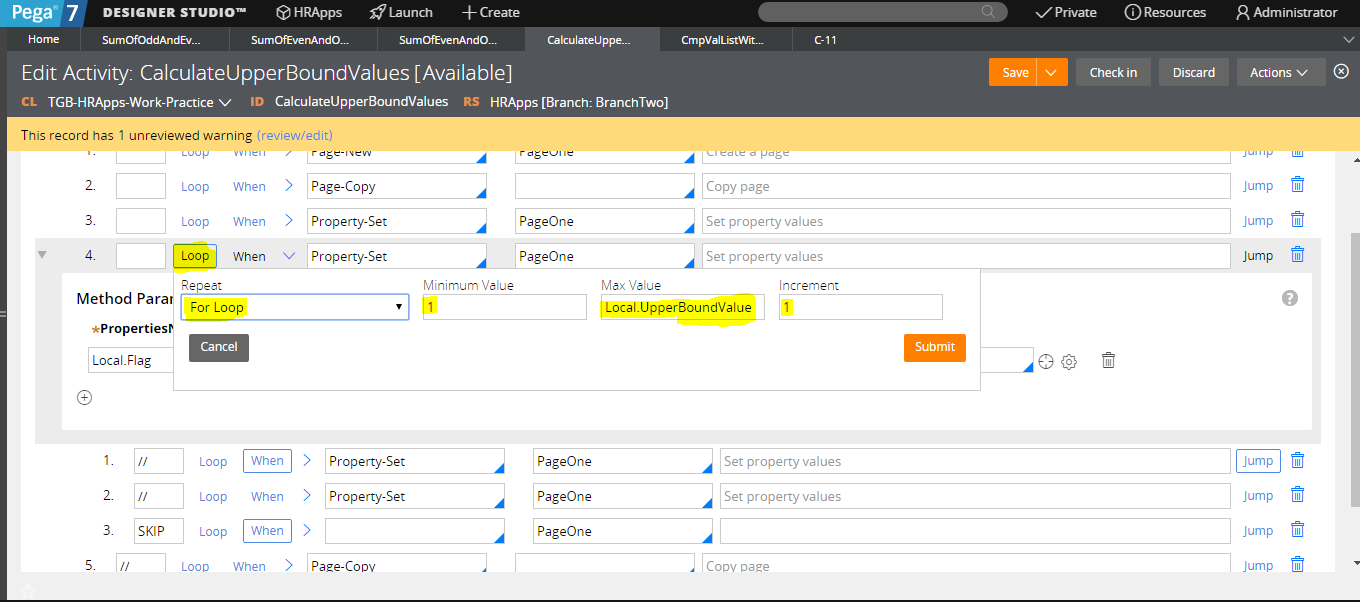
In the fourth step, I used Loop to achieve the while loop in above program.

I added a child for 4 th step to add all the even numbers and odd numbers. In 4.1 I added a when condition to check whether the current value is odd or even number.


(<CURRENT>) - it is similar to i in for loop
On first iteration, (<Current>) value will be 1 in sencond iteration (<Current>) value will be 2 and in 3rd iteration (<Current>) value will be 3 ans so on.

If the current value is Even means we no need to execute 4.2(Used for odd value calculation). So In the end of 4.1 , I wrote condition to jump to Step named SKIP  by using Always(Built in) when condition.

In 4.2 I added a property set to calculate odd value sum.


In 4.3 we add a step , in that step I added a precondition , there we use Always to  exit the Iteration.


In the last step I added one Page-Copy to copy all the manipulated data in PageOne to pyWorkPage.

To see the result,  We refer the SumEven property and SumOdd property from clipboard to Section.

I drag and drop one dynamic layout.
then refer that two property in this dynamic layout.

I refered those two property and make them read only.

Now our UI look like this,

We no need to see the SumEven and SumOdd if there is no value in UpperBoundValue, so we can add Visibility for that dynamic layout.

Now once again , run the flow or refresh .

 Afer I gave 10, result will be.


SumEven = 2+4+6+8+10 =30
SumOdd = 1+3+5+7+9 =25

If u have any doubt ask in comment :)