Showing posts with label Page New in pega. Obj Save in pega . activity in pega. Show all posts

Sunday, 25 November 2018

How to Insert Records into Table in Pega

How to Insert Records into Table in Pega


I was created an Local Data Type with Zero Records, Lets see how to insert data in to Table.

I have created a flow , in the first assignment I get Employee Information .In  the flow action post action I mapped an activity to enter the information what we get in the first assignment into the table.


Now add activity to flow action post action.

Activity Methods used to insert data to table.

Pages and Class Tab:

In this activity we are inserting the data in to the table, We have all the data except EmployeeID, We have to get incremented  EmployeeID for each employee.

EmpCaseInfo page to store Case Details what user provide in the form.
MaxRecords page to store existing records in table.

Obj-Browse to retrieve all the data which is already present in the table. We are using this step to get the count of the table, Now we can add 1 to get next employee id for current Case.
In the property-set , I copied the data in Primary Page(pyWorkPage-TGB-HRApps-Work) to EmpCaseInfo(TGB-HRApps-Data-EmployeeInfo) Page.
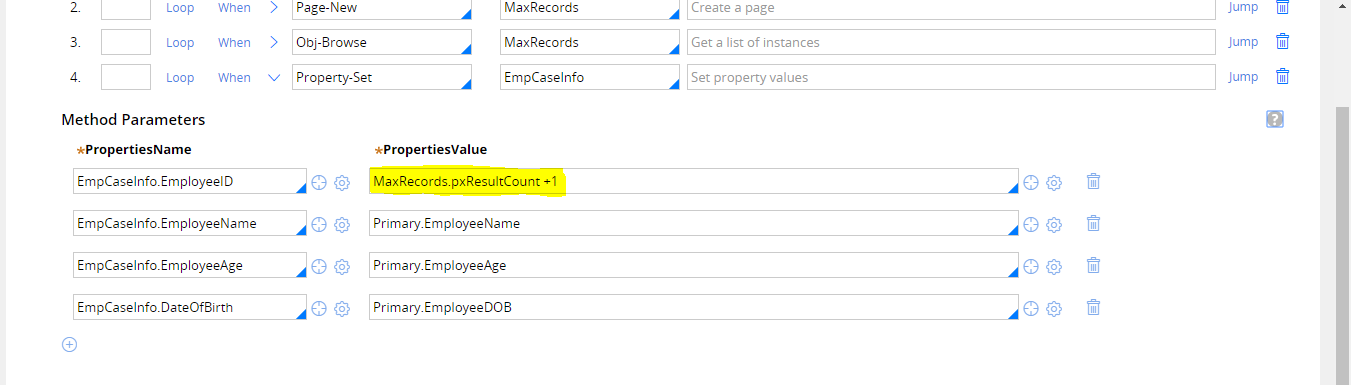

EmployeeID is calculated by record count of the table +1, if 10 records are already present then pxResultCount will be 10, for our next record we are providing EmployeeID 11.


Obj-Save to save the data into Table.

Lets test the activity by run the flow and enter test data.

I am providing this data and click submit.

Now you can see first record is inserted.

Lets provide another one data.
After processed this case, you can see a new record is added in table.

That's all insertion of data into table. If you have any doubt ask in comment.

Monday, 15 October 2018

Obj-Filter in Pega

Obj-Filter in Pega

Hi Friends, Today I learnt about Obj-Filter , I will share My Knowledge to you.

From the Method Name itself we can guess the functionality of this Method. Your Guessing is correct. This method is used to filter records .

Let we see in practical. Below is this List of Records in Class TGB-HRApps-Data-Courses

Now we will use one activity to retrieve those records from table and Filter based on some condition.

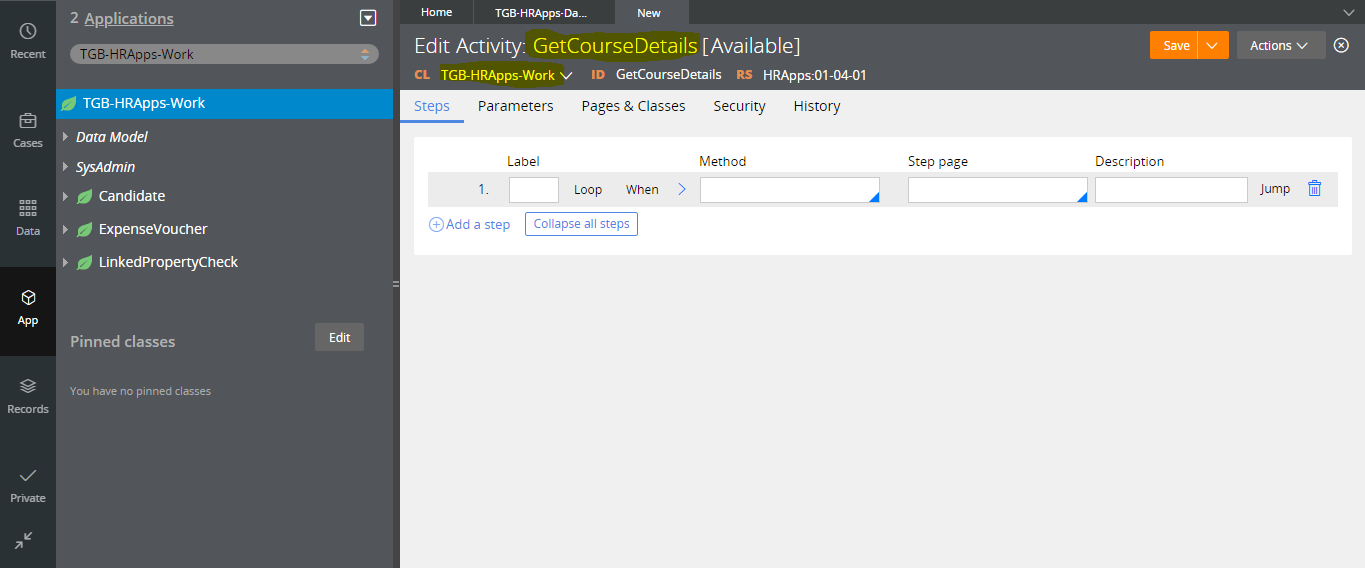
This is the activity I created in TGB-HRApps-Work.


I added 3 steps in activity

  1. Page-New to store all my data while processing.
  2. Obj-Browse  to retrieve records from Database table
  3. Obj-Filter to filter the retrieved Records.

Here is the Pages and Class Tab


I retrieved all the records from Table Using Obj-Browse Method.


Now Up to this step It will retrieve all the records from Database On seeing the Clipboard U can Get some idea.

Next in Obj-Filter I added a when condition to retrieve only Records having Department "All"

In Obj-Filter Method,
In List Page We have to provide the Page List in which the records are available.
In Result Class We have to provide the Class in which the page list is belongs to.
In When condition we have to provide a when rule , In which we have to write filter condition.

Here is the When rule 


This When for  Filter only the Records Which Contain Department "All"

Record Which satisfy the When rule only remain in the page, other records will be removed.

So  Records having Department only remains in my page, Lets execute and See the result.


Now u can see there is 6 records in the Course Records Page.

It contain only the records Department contain All..

Thank u Friends for Reading.. See u. :)

Tuesday, 28 August 2018

How to save data to database in pega using activity

How to save data to database in pega using activity


In How to create Local Data table in Pega , we saw how to create local data table in pega. Now we can try to insert data to these table by using activity dynamically.

Now assume , our requirement is to get employee Educational Information and store those details to database, for this we have to create one flow. flow contain 1 section in the first section we are getting the educational information and in the first flow action post condition activity we call one activity  there we store those details to database.
How to create flow in pega

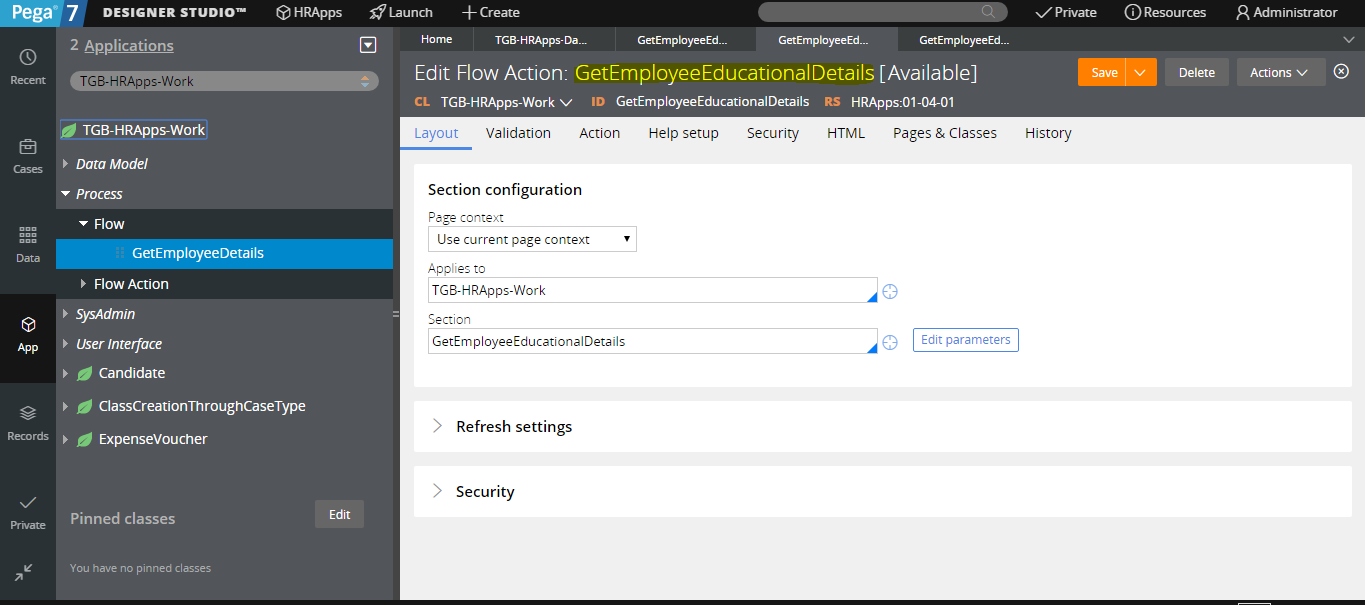
Our First Flow action is
How to create flow action in pega
Our section is
How to create section in pega
Now on running the flow our section will display
How to run flow in pega

Now what we have to do is on clicking the submit we have to store the data to database , fot this we have to write one activity in flowaction post condition activity.
How to add post action activity in pega flow action


Flow action activity in pega

Now our New activity will look like this.
activity in pega

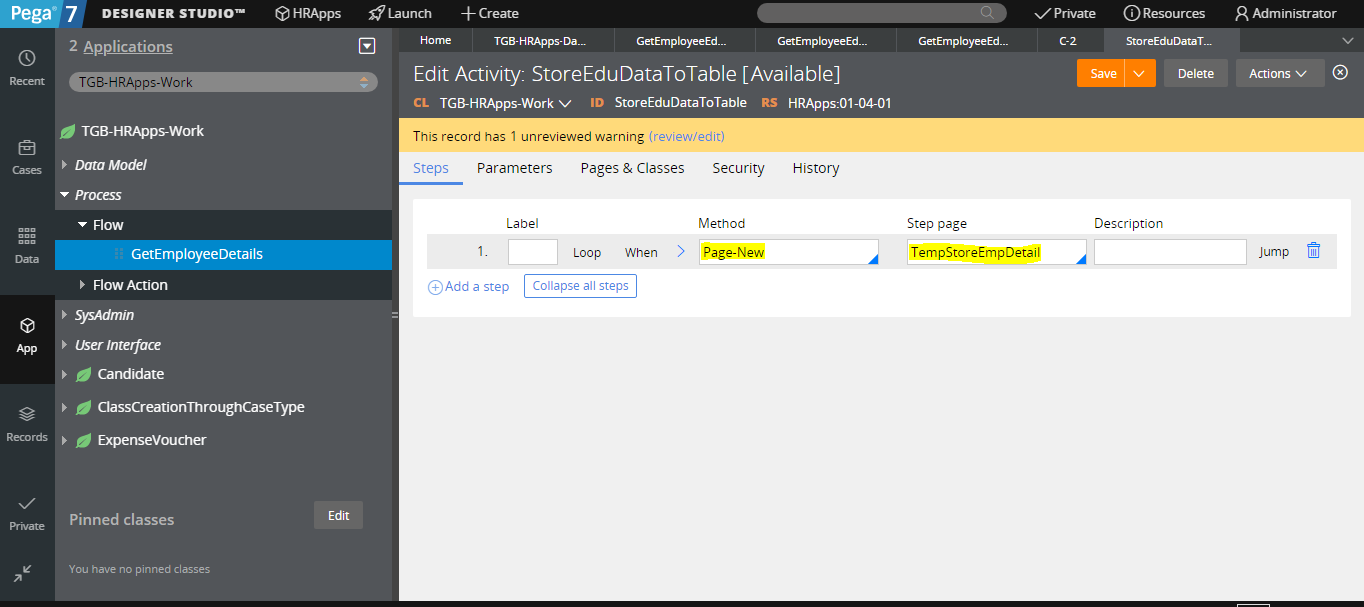
In activity first step we have to wrote is"Page-New", For creating new page in clipboard and storing our data .
Page New in pega
After we add the page here , we must give class for this page , because we have to tell pega which class this class is belongs to . So that only we can acess the property in those class using that page.
Pages and class in pega

Then what we have to do is, we have to refer all the properties from clipboard to our activity,


If u confused about clipboard , note this.. After we give values in section and click submit.  Provided values in section will be store in clipboard , so we can access those value from clipboard to activity .

Now I provide some values in our section and click submit.
After click submit , open clipboard and choose our thread(Choose oru case id in clipboard as thread)
Clipboard thread in pega

Normally our data will be there in pyWorkPage.
pyworkpage in pega

So We can access the values from clipboard . Now lets see our activity.
pyworkpage in activity

In second step , I added one property-Set there I copied all the values from clipboard page(pyWorkPage) to Our Page(TempStoreEmpDetail)

U can ask now, where u mentioned pyWorkPage, the answer is .... I left the step page as blank. so dynamically on the activity run time the page will be pyWorkPage so no need to add there pyWorkPage. so I left that blank.

On the Left side of 2nd step property set we have to mention to which property we have to assign those clipboard values.

We have to give column name of table then only we can save the values to table.
property set in pega activity
Now it will refer the Properties in class TGB-HRApps-Data-EmployeeEducationalInfo because our page TempStoreEmpDetail is reffered to this class.

Now the Third step is to save data in TempStoreEmpDetail to database.

Obj Save in pega
Now we are saving all the data in TempStoreEmpDetails page to datbase, so that only I gave Step Page as TempStoreEmpDetails.


Now check whether our flow and activity works or not by giving values in our section and click submit.

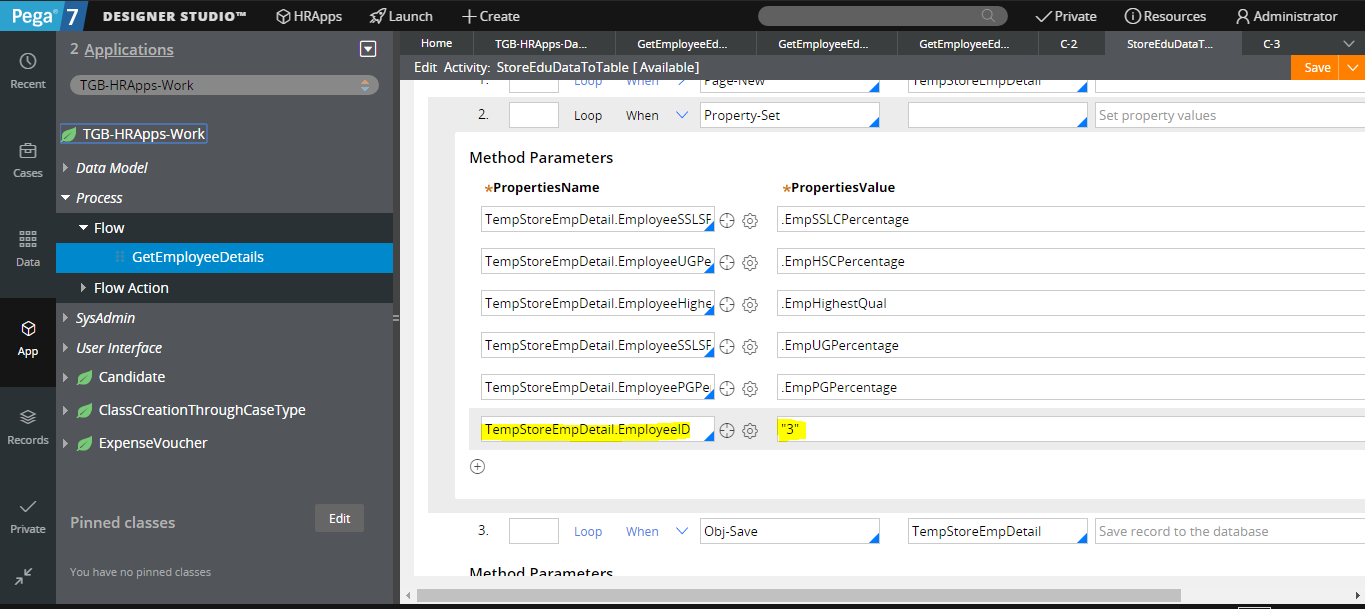
I tried its not worked, because we are not provide EmployeeID, that is primary key for that table, we should provide value then only the data will be stored in database.

So we have to add one value in property set 2nd step. I hard Coded with 3 because already there is 2 records there in database.
Hard code values in pega property set

Now try to run.
insert data in to pega local data base

U can see the values are stored in database, but EmployeeHscPercentage is missing, lets solve this issue and Run once more with Employee ID hard Coded with 4.

The problem is I not mapped that values in property set correct.
Now run once again and test.


Now u can see all the values are filled in table.


If u have any doubt ask in comment 😊