Thursday, 25 July 2019

How to export from Page List to excel in pega

How to export from Page List to excel in pega


Hi Friends, Today we will see how to export data from Page List to Excel sheet in pega.

Below is the List of steps we will follow to do this.
  1. Form Data in Page List
  2. Create Binary File Rule and Upload excel file contains page format of property
  3. Call Pega built in utility to export data

We have LeaveBalanceDays data Class which have list of Records. Now we will try to export these data to excel.


Below is the list of steps we will use in activity.


Pages and Class Tab:


Form Data in Page List:

 Before exporting data to excel we are forming the data in page list. In the Obj-Browse we are retrieving list of records and keeping in the Page List named EmpList.


Create Binary File Rule and Upload excel file contains page format of property:

We have to create a binary file rule which contains sample structure of data that we are going to export. Below screenshot is the excel file that we are going to upload in binary file.


Each EmployeeID in page will print in EmployeeID Column , Each FirstName in page will print in FirstName Column .

Save this file in your local machine in format .xlsx

Create binary file with Directory name as excel  and  file type as xlsx 
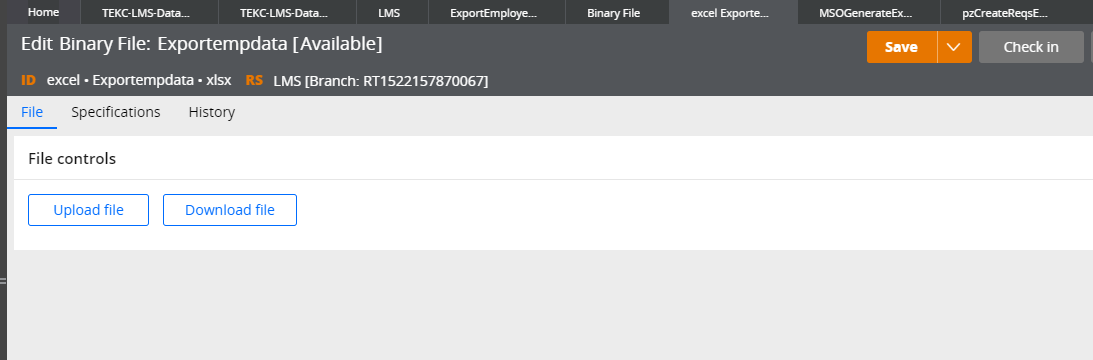


After creation of binary file upload the excel file template that we stored in local machine.


Save the binary rule.

Lets come to activity steps. MSOGenerateExcelFile is the built in activity to export data to excel we have to provide some required parameters to that activity.


For MSOGenerateExcelFile activity we have to pass 3 parameters.

  1. Param.FSFileName - Provide excel file name that we uploaded.
  2. Param.TemplateRFB - Have to provide binary file template name.
  3. Param.DownloadFile - true if we want to download file.

Check Pass Current parameter in method parameters.

Lets test our steps by run the activity.
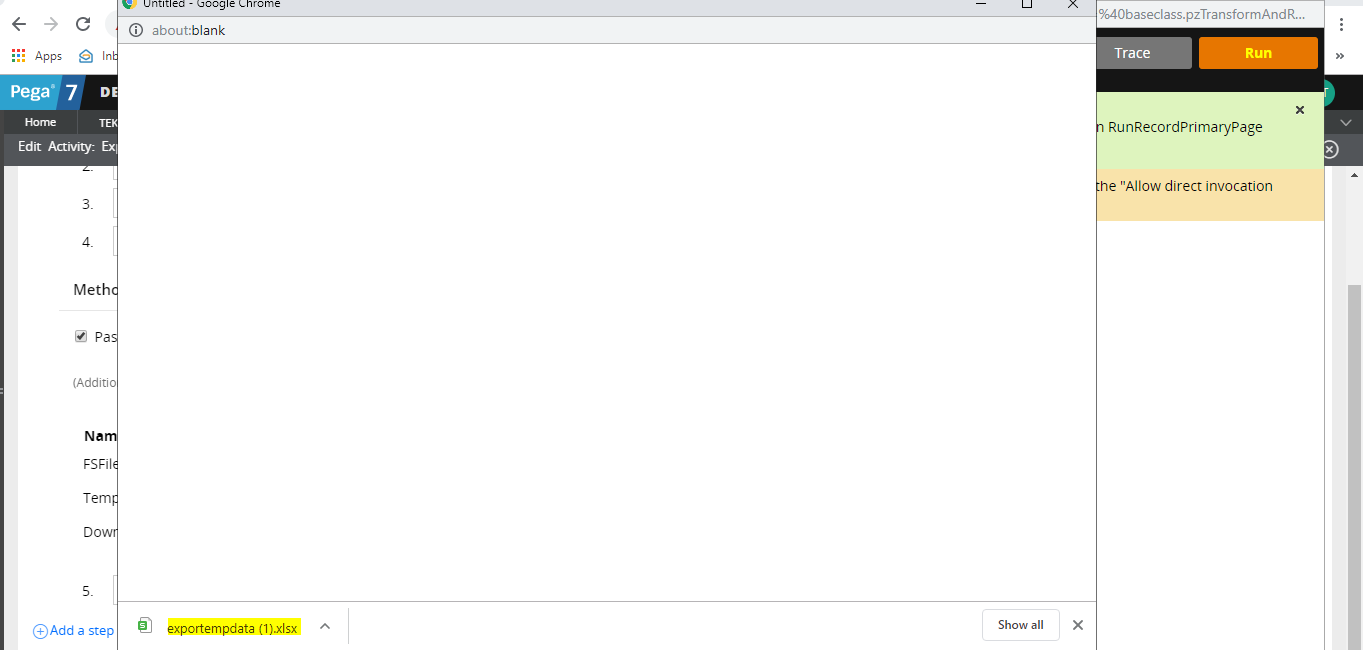


Excel file got downloaded open the file and check whether data exported or not.


Data in data table exported to excel file. Hope this concept understood . If any queries ask in comment friends😊

Note: In some pega version MSOGenerateExcelFile activity may through nullpointer exception. If so replace java step in MSOGenerateExcelFile with Below code and try:


String xlFileName = tools.getParamValue("FSFileName");
PRFile xlFile = new PRFile(xlFileName);
java.io.OutputStream xlOS = null;
java.io.InputStream tempIS = null;
byte[] tempBytes = null;
boolean projectSizingPresent = false;
String strWorkObjectRef = "";
ClipboardPage objRefPage = null;
java.util.ArrayList sizingList = new java.util.ArrayList();
try {
  
        tempBytes = new com.pega.pegarules.pub.util.Base64Util().decodeToByteArray(tools.findPage("TemplateFile").getString("pyFileSource"));
  
  
    tempIS = new java.io.ByteArrayInputStream(tempBytes);
    java.util.Map xlZipEntryMap = null;
  
        xlZipEntryMap = com.pegarules.generated.pega_appdefinition_excelintegration.DCOXLGenerateZipEntryMap(tempIS);
  
    xlOS = new PROutputStream(xlFile);
    com.pegarules.generated.pega_appdefinition_excelintegration.DCOzipEntryMapToStream(xlZipEntryMap, xlOS);
    if (tools.getParamAsBoolean(PropertyInfo.TYPE_TRUEFALSE, "DownloadFile")) {
        pega_rules_default.downloadFile(xlFile.toString(), tools, true);
    }
}
catch (Exception e) {
    oLog.error("Error in parsing Excel file " + xlFileName, e);
    //throw new RuntimeException(e);
    tools.getStepPage().addMessage(e.toString());
}
finally {
    if (xlOS != null) try { xlOS.close(); } catch (Exception e) { }
    if (tempIS != null) try { tempIS.close(); } catch (Exception e) { }
}


Sunday, 30 June 2019

Obj-Refresh and Lock method in pega

Obj-Refresh and Lock method in pega


Hi Everyone, in this post we will see how to use Obj-Refresh and Lock method in activity.

PDN Help Link:


This method we will use to acquire Lock on work object. Whenever we want we can acquire lock by using this method.

We opened the instance without lock . In later steps we need to get the lock on work object means we can use this method.

If we not sure whether we acquire lock or not then we can use this method to acquire lock.

If work object is already locked then this method will not affect.

Lets check Obj-Refresh and Lock by an example.

We have a data class Courses having some number of records. Will try to acquire lock on this instance by using Obj-Refresh and Lock Method. Before using this method we have to make sure that whether that class support locking or not.

How to check whether class support locking or not?

     If we open class definition we can see Locking tab there we can see Allow Locking check box.


Locking tab of Class rule:


So now we know that this class allow locking on instances.

Lets write an activity to acquire lock on one of these instances.

In below activity we used Obj-Open to open courses class record  without lock whose ID is "END-001" . So we not acquire lock yet.


In third step added Obj-Refresh and Lock method to acquire lock.


This Lock will be released on Commit . If we not added commit method then lock will not get released . We have to use this method with more care.

Added Commit step.


Lets test this by trace this activity :)

Make sure that you enabled locking in tracer settings to check this .


Activity got run successfully.

Lets check tracer,, In below image if you see on executing  Obj-Refresh-And-Lock method Acquire Lock  happened.

On Commit Release Lock happened.

While releasing the lock you can see a delete operation is performed from pegadata.pr_sys_locks table. Means while acquiring lock a record will be inserted in to this table which contains lock information like who locked and when it will be released.


Hope you understand about Obj-Refresh and Lock method.

Lets comment Commit method and execute this activity and look at the instance from System-Lock class.

From the below image you can see that lock is acquired but not release since we commented commit step.


So now this record will be there in System-Lock class.


Here you can see our record list here in System-Locks instance.

How to release lock ?

We can release lock on record by using a method Page-Unlock. We have to provide the step page which is locked.


Tracer:

 In the above image you can see Page-Unlock method released the lock.


Hope u guys understand this post. If have any doubt ask in comment section

Understanding a Activity How it works

Hi Peers,

Today  we walk you through in this post regarding simple activity to understand the rule behind scene :)


A simple activity can update a property for one operator ID instance by opening the instance, updating the clipboard page saving the updated clipboard page, and committing the result to the database

First the activity opens an operator ID record, based on the value of a parameter, and copies the data from the database to a clipboard page. Next, the activity updates the user locale update time and name of the user who updated the record. Finally, the activity saves the updated page back to the pega database, making the updates permanent.

Each step of the activity and its corresponding method are described below,

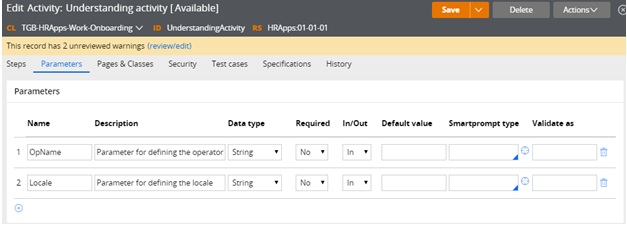
On the Parameters tab define the parameters that identify the operator Id to be updated and the new locale value


On the Pages & Classes tab enter the name of a page that holds the contents of the Opertor ID record that is returned by the Obj-Open method.


On the Steps tab, do the following.

   Add an Obj-Open method. This method opens a single record from the database and copies in to a clipboard page.

 Enter the values shown below to specify that the value of the .pyUserIdentifier property on the Operator record equals the value of the parameter that is defined on the Parameter tab.


Note : Methods that return data from an object (such as Obj-Browse and Obj-Open) .Put the returned data on the step page.

If your application updates and saves the instance select the lock check box to prevent other requestors from updating the instance while your requestor is using it.

Add a Property-Set method to update the .pyUseLocale  property and two other  properties. List the Step page again. This provides context for the properties that are selected so you do not need to provide the page name before  the period that precedes the property name.

Note: @CurrentDateTime() is a standard function rule that returns the current system date and time.


Note: For activities that are used in flow processing, do not include a Commit step. Built-in activities contain Commit methods at the appropriate places.


At this point, you can test the activity. After you run the activity, you can see the updated data on the Operator ID rule form. To help with testing, include a Show-Page method to display the Operator page contents before or after the Property-Set step.

Testing the example

To test the activity, do the following steps:
  1. Click Actions > Run.
  2. Notice the parameter names; these are the names that you defined on the parameters tab.
  3. Enter a value for each parameter.
  4. Click Run to start the activity.

Run parameters

When the processing reaches the Show-Page step, the page contents appear as an XML document in a browser window.

The page output appears as shown below. Notice the pyUserIdentifier and the updated pyUseLocale values.


Note:  Remove the Operator page from the clipboard by adding a Page-Remove method. This frees up memory that is no longer needed.  In the Step page field, enter the name of the page to be removed.

Cheers,

Hope you understand. If you have any queries ask in comment section.

Thanks peers :)

Thursday, 27 June 2019

Use of Wait Method in Pega

Use of Wait Method in Pega


Hi everyone, Today we will see how wait method will works in pega,

 Pega PDN help topic about wait method:

 ttps://community.pega.com/sites/default/files/help_v718/methods/wait/wait.htm

From my understanding , this method will pause the thread for specific time period that we mentioned in the method.

From the PDN Help we can come to know that this method will perform Java sleep.

This method has 2 parameters

  1. Second- How many seconds have to wait.
  2. Miliseconds- How many miliseconds have to wait.
Lets use this method practically and know the usage :)

 I added wait method in the activity provided wait seconds as 60 seconds. So after 1 mins only page-remove step will execute.


Lets trace this activity and check this . 


From the above pic you can see that wait method started and waiting for 1 mins to complete. 


After One minute method got completed and third step executed.

I hope you guys understand this topic. :)

Friday, 24 May 2019

How to add compatibility Meta Tags in Pega

How to add compatibility Meta Tags in Pega


In this post will see how to add compatibility meta tag in head tag.

For Clear Understanding about Meta Tag Please refer this link

Now in this post we are going to add the below meta tag to Html head tag.

<meta http-equiv="x-ua-compatible" content="IE=edge"> 


Look at the above two screenshot. I inspected Case worker portal and within the head tag there is no Meta tag like http-equiv="x-ua-compatible".

In pega there is an option to add JS file in Harness. In harness open scripts and style tab.

Here add a new JS File and open that js file and paste below code in that file.

var meta = document.createElement('meta');
meta.httpEquiv = "X-UA-Compatible";
meta.content = "IE=edge";
document.getElementsByTagName('head')[0].appendChild(meta);
Functionality of this code is to add append meta tag to head tag.

Save the JS File and harness . Refresh the harness and check whether new Meta Tag is added or Not using Inspect element.

Saturday, 11 May 2019

Why Data Page (or) Declare Page in Pega?

Why Data Page (or) Declare Page in Pega?

Why Data Page (or) Declare Page in Pega?


Why Data Page (or) Declare Page in Pega?

Why Data Page (or) Declare Page in Pega?

Wednesday, 8 May 2019

Refresh section using ReloadSection activity in Pega

Refresh section using ReloadSection activity in Pega


I faced one scenario to reload section using activity in my work. I will explain how to refresh section using activity.

ReloadSection in class Name @baseclass is the pega activity which will call during section refresh, We have to pass some needed parameter to this activity to execute this activity. Some needed parameters are 
  • StreamName - Section name to refresh
  • StreamClass -  Class Name of the Stream. If the rule we are refreshing is section then class will be Rule-HTML-Section, if the rule we are refreshing is HTML Fragment then class will be Rule-HTML-Fragment. 
Below is the section that we are gonna refresh when CustName property value is changed.

I Created a Declare On Change rule to monitor CustName , If this property has Changes then it will trigger the activity"CalculateCustDetails"
Below is the activity that will execute on CustName property changes.

In First step I added a Property set to setting parameter that we have to pass to ReloadSection activity.

In Stream Name parameter provided the section name 
In Stream Class parameter provided the Section Class(Rule-Obj-Section)

We can pass extra parameter like pre activity to execute before section reload for this activity.

So If I am provide any name in the CustName property dynamically it will change the name to Rahul(HardCoded Name in above acitivity) and it will refresh the section. Lets try it.

I am providing the name chaitanya . On ReloadSection activity execute it will change the name to Rahul Lets try it.


After section refresh,


That's it. Hope you understand this post. If any doubt ask in Comment 😊

Note: If we are providing StreamName as section class name then it reload section will through below error.

* Missing stream key property pyID *

Cascading Auto Complete in Pega

Cascading Auto Complete in Pega

Functionality to implement: Have to display list of Country, then based on country selected have to show list of state, based on state selected have to display list of city.

Created a Local Data Table(TGB-HRAPPS-Data-LocationInformation) with sample data.


Created a section in Work class with 3 auto complete (Country, State, City)


For Country Property provided source as Report Definition and mapped Report Definition(GetCountry)


Provided Data source Property as .Country(TGB-HRApps-Data-LocationInformation) .List of country which is retrieved through report definition will display dynamically.


Below image displays GetCountry Report Definition. Checked Remove duplicate Check box so it will remove duplicate country.

Similarly state property also selected source as report definition. For GetState we have to pass selected country as parameter so that we can filter state which is in selected country.


For Data Source Property we have to give state which is retrieved in report definition.


Below image shows GetState report definition , Here we are getting List of state in the selected Country.


For city provided source as report definition(GetCity)


Provided City as Data source property.


Below image shows report definition to get city.


For all three property we have to give on change event as post value. So that selected value will update in Clipboard.


Result:

On clicking Down Arrow auto complete displays list of country.


Display list of state in country America.


In City auto complete it display list of city which is in state American State one.